Import contacts using a template
You might have a spreadsheet with contact information for the people who support your organisation’s fundraising activities. You can import these contacts into Destiny Fundraising Manager using a template provided in the application.
There are three steps:
Step 1: Download the import template.
Step 2: Enter your contacts’ information in the template.
Step 3: Import the template.
Step 1: Download the import template
-
In the header, click Contacts. The Contacts page appears.
- Click Download Import Template.
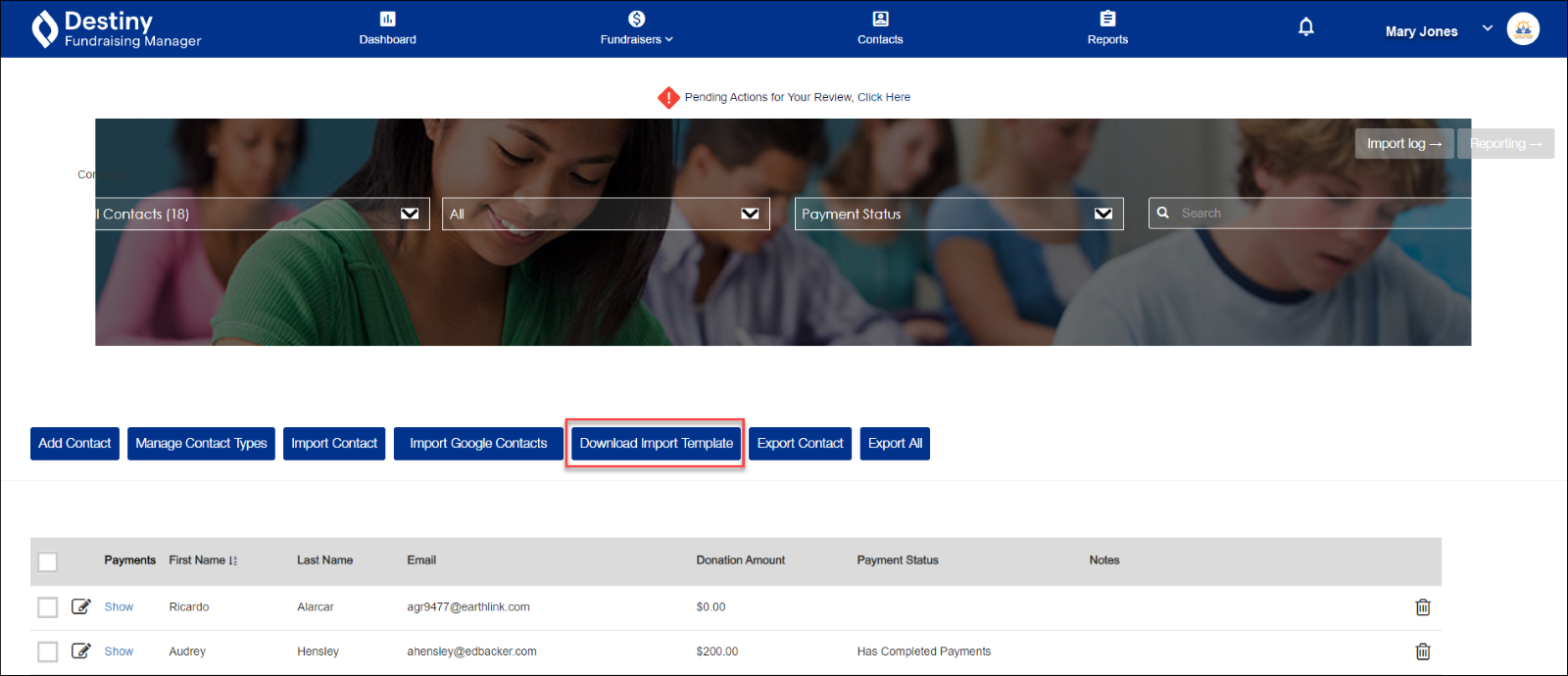
The file EdbackerImportTemplate.xls downloads to your local drive.
-
Navigate to the file and open it. Proceed to Step 2.
Step 2: Enter your contacts' information
-
In the file, type each contact’s First name, Last name, and Email address in the appropriate columns. Entering data in the other columns, such as Phone number and Address, is optional.
-
Repeat for each contact you want to enter.
Note: Do not alter the column names, or the data might not be imported correctly.
-
Save the file to your local drive. Proceed to Step 3.
Step 3: Import the template
-
Log on to Destiny Fundraising Manager.
-
In the header, click Contacts. The Contacts page appears.
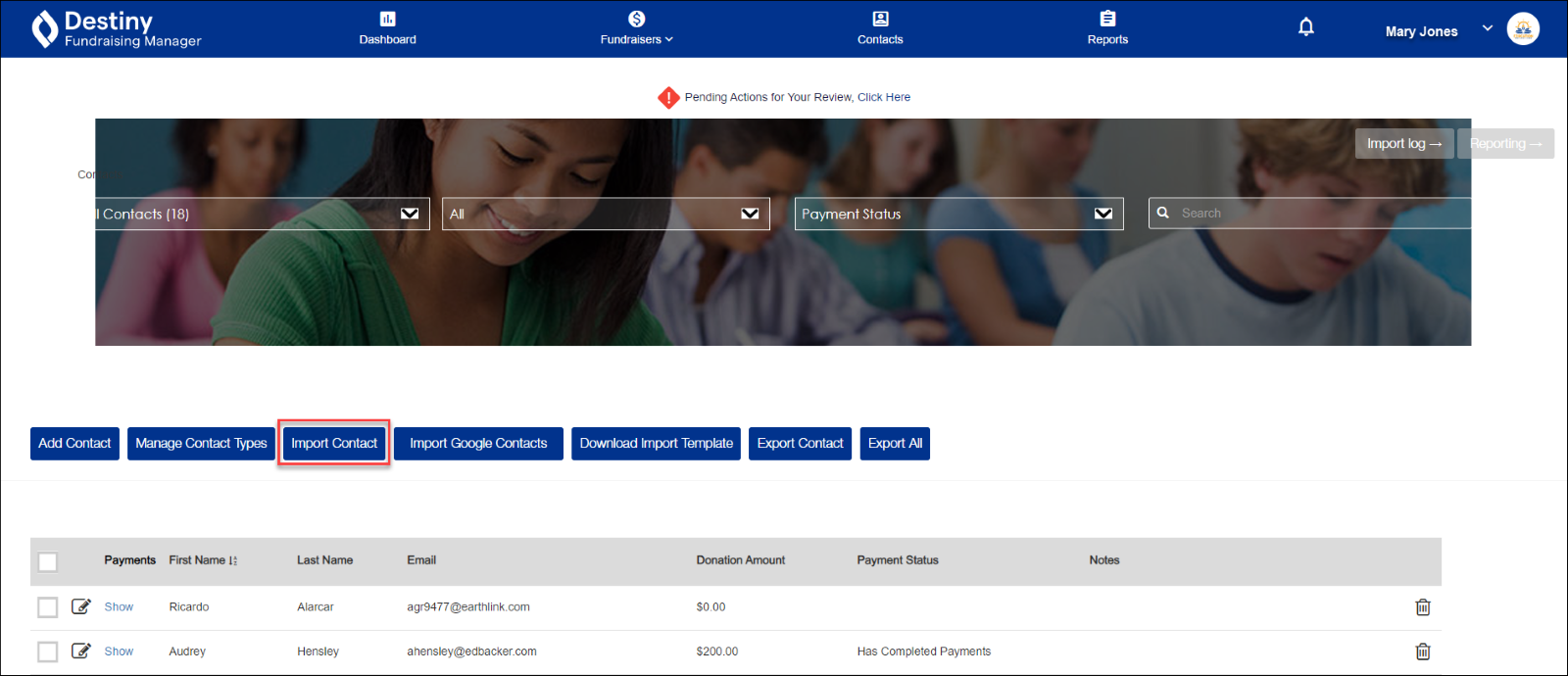
- Click Import Contact.
-
On the pop-up, click EdbackerImportTemplate.xls, and then click Open. The imported contacts appear on the Contacts page.
For additional help, contact techsupport@follettsoftware.com.